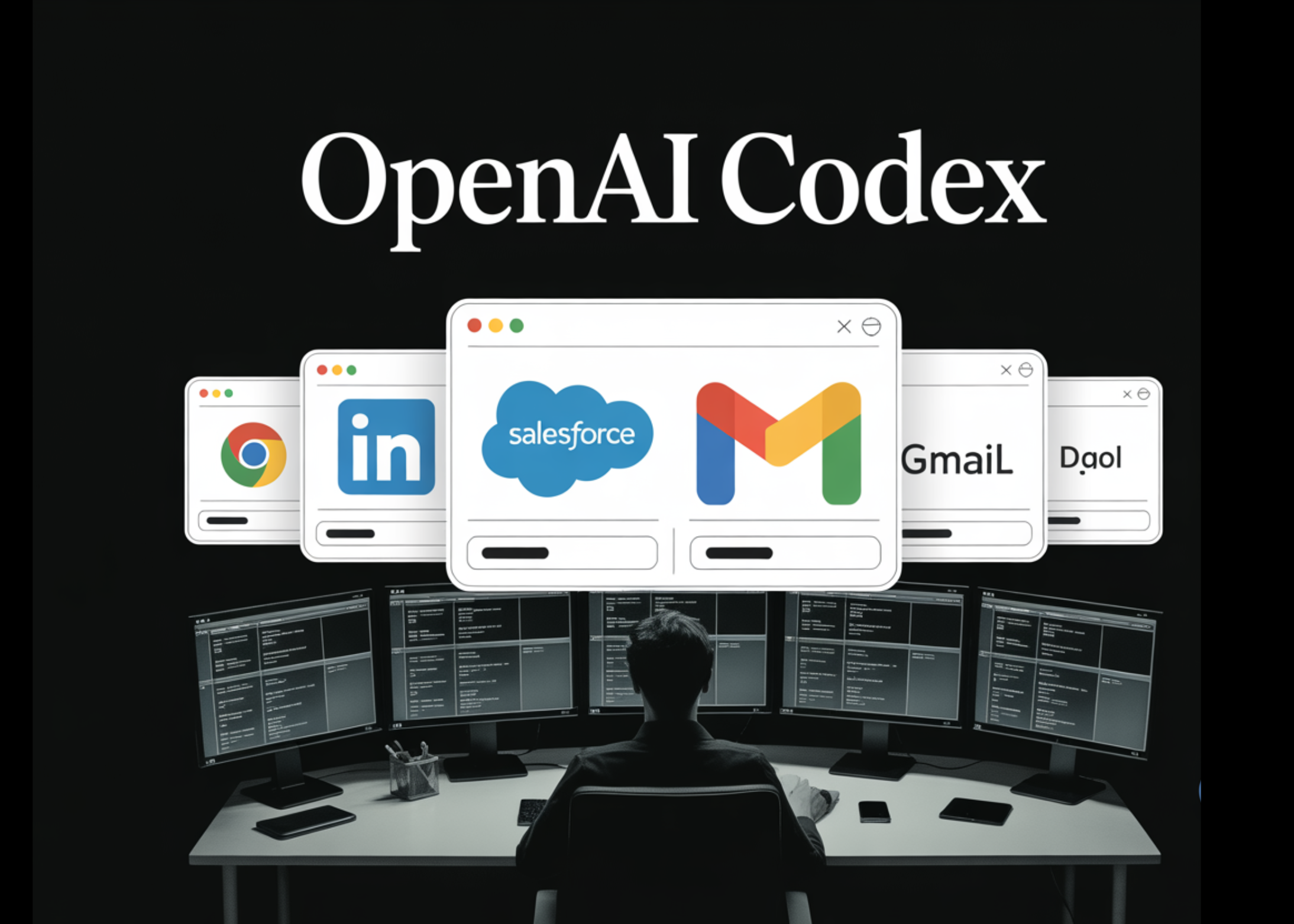
OpenAI’s Codex just got a powerful new tool: a Chrome extension for Mac and PC that lets its AI agent directly interact with your real, signed-in browser sessions. This release addresses a long-standing gap in automation—handling tasks on logged-in sites like LinkedIn, Salesforce, Gmail, and internal tools—without relying on fragile APIs or third-party plugins. Before this, Codex could only work inside a sandboxed in-app browser or through dedicated plugins. Now, it can operate seamlessly across three distinct tiers, automatically choosing the best approach for each job. Here are six key things you need to know about this update.
1. The Core Innovation: Browser Context Access
Unlike previous methods that depended on a built-in sandboxed browser or plugins for specific services, the Chrome extension gives Codex access to your actual signed-in browser state. This means Codex can see exactly what you see when you’re logged into a web app—your personalized views, session cookies, and configured workflows. For example, it can read emails in Gmail, update records in Salesforce, or navigate internal company dashboards that require authentication. The key advantage is that no setup or API integration is needed: Codex simply uses your existing Chrome profile to execute tasks as if you were doing them yourself. This dramatically reduces friction for common business processes that span multiple web apps.
2. The Three-Tier Tool System
Codex now operates across three distinct tool tiers: plugins for services with dedicated integrations (like GitHub, Slack, Figma, Notion), the Chrome extension for any site that requires sign-in and personalized context, and the in-app browser for local development servers, file-backed previews, or public pages. The agent automatically selects the most appropriate tier based on the task. This layered approach ensures efficiency—you never waste resources on full browser automation when a lightweight plugin works, and you never get stuck when a plugin doesn’t exist. If needed, you can override the automatic selection by explicitly invoking the Chrome extension.
3. The @Chrome Mention Syntax
To give users direct control, Codex supports an @Chrome mention syntax in prompts. For instance, you can type “@Chrome open Salesforce and update the account from these call notes” and Codex will launch (or use) an existing Chrome session to perform the task. This is especially useful for complex workflows where you want to force the agent to use the browser tier. The syntax works even if Chrome isn’t already open—Codex can start it automatically. This design keeps the interaction natural while giving power users a clear way to direct the agent’s tool choice. It’s a small but important feature that bridges conversational AI and deterministic browser control.
4. Parallel Workflow Capabilities
The Chrome extension brings capabilities beyond simple navigation. Codex can test web applications, collect context from multiple open tabs, and use Chrome DevTools—all while you continue working in other tabs. It operates in task-specific tab groups, so it doesn’t hijack your active browsing session. For example, while you’re reading a report in one tab, Codex can be in another tab group pulling data from three internal dashboards and cross-referencing it in a fourth. This parallel processing is a game-changer for research, audit, and validation tasks. The agent can also run DevTools commands to inspect network requests, debug JavaScript, or verify page state, making it useful for QA engineers and developers.

5. How to Install and Activate
Getting started is straightforward. First, install the Codex Chrome extension from the Chrome Web Store. Then, sign in with your OpenAI account and grant the necessary permissions for Codex to read and interact with web pages. You can manage permissions per site for security. Once installed, Codex will automatically use the extension when it needs logged-in context—no further configuration required. If you want to invoke it explicitly, simply prompt with @Chrome. The extension works on both Mac and PC. Note that the in-app browser remains available for any tasks that don’t require your personal session, ensuring a clean separation between sandboxed and real-browser workflows.
6. Key Use Cases and Practical Examples
The most immediate use cases are sales operations, customer support, and engineering tasks. In sales, Codex can pull call notes from a VoIP tool, search for the corresponding account in Salesforce, update fields, and send a follow-up email via Gmail—all in one prompt. In customer support, it can access internal ticketing systems, check order statuses, and compose responses. Developers benefit from testing web apps against real backend services without switching tools. The extension also excels at collecting context: say you need to gather information from five different internal tools for a report—Codex can open each, extract key data, and compile it into a summary. Because it uses your signed-in sessions, you avoid the hassle of maintaining API tokens or dealing with blocked endpoints.
In summary, the Codex Chrome extension marks a significant leap forward in AI-assisted browser automation. By granting controlled access to signed-in sessions, OpenAI has made it practical to automate complex, multi-step workflows that span both public and private web applications. Whether you’re a sales rep, a developer, or an IT administrator, this update removes the final barrier between your AI agent and the tools you rely on every day.